Guides → WiFi LED Stock Ticker
WiFi LED Stock Ticker
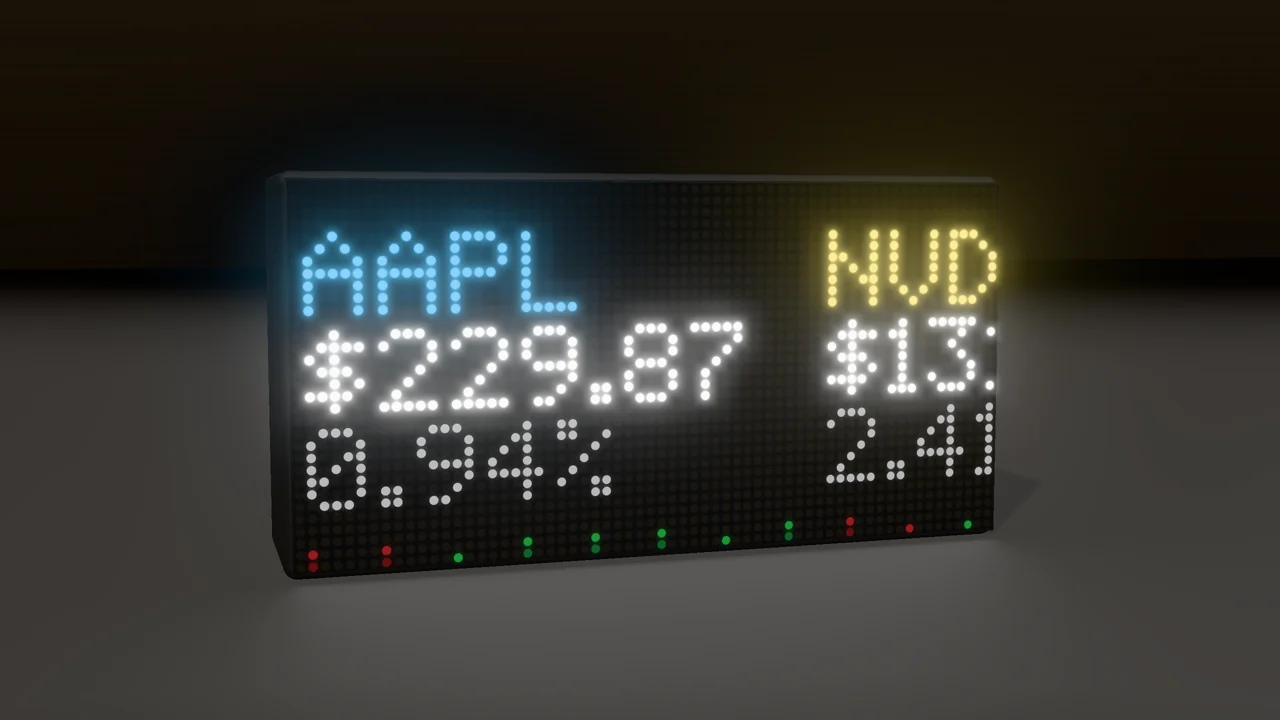
Live price, percent change and a small trend chart for any stock, ETF or coin. Pick several for a scrolling ticker line.
What you need
- A DataPix, powered on and joined to your WiFi (see Setup).
- A free Twelve Data API key.
Step by step
-
Open the setup page
From a browser on the same network, open the address shown on the panel.

-
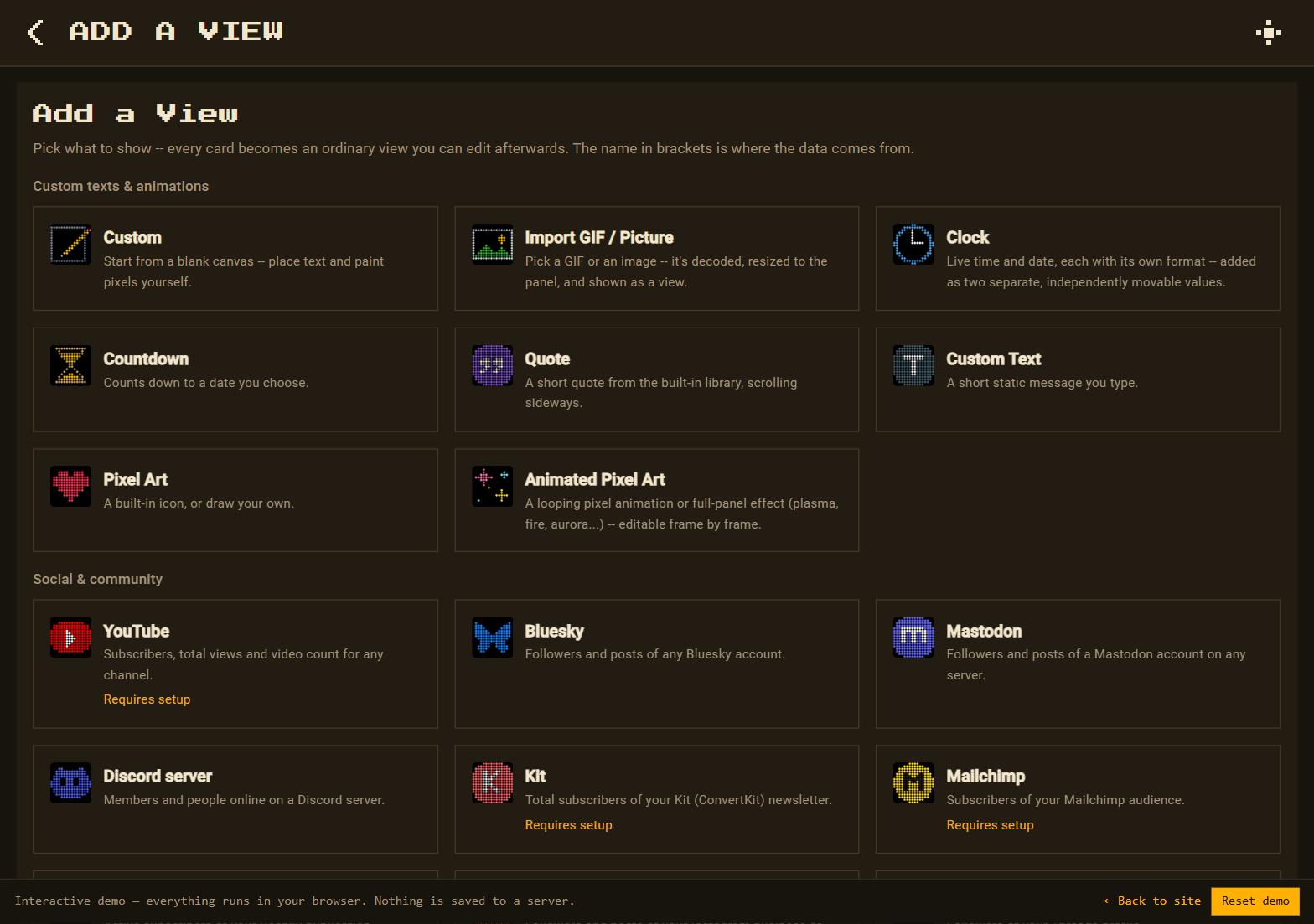
Add a View → Stocks & Crypto (Twelve Data)
Go to Views → New view. On the Add a View page, under Finance & life, pick Stocks & Crypto (Twelve Data).
-
Key and tickers
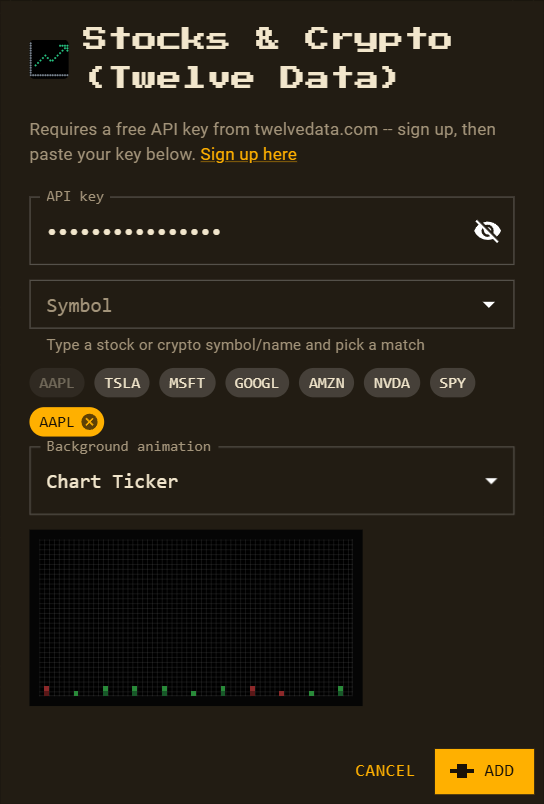
Paste your key, then search a symbol or tap a shortcut (AAPL, TSLA, MSFT, GOOGL, AMZN, NVDA, SPY). DataPix remembers the key for next time; change it later in Accounts & API keys.
-
Background animation
The view starts with Chart Ticker scrolling along the bottom. Pick any other scene, background, pattern or effect, or None — the preview plays right in the dialog.
-
Arrange and save
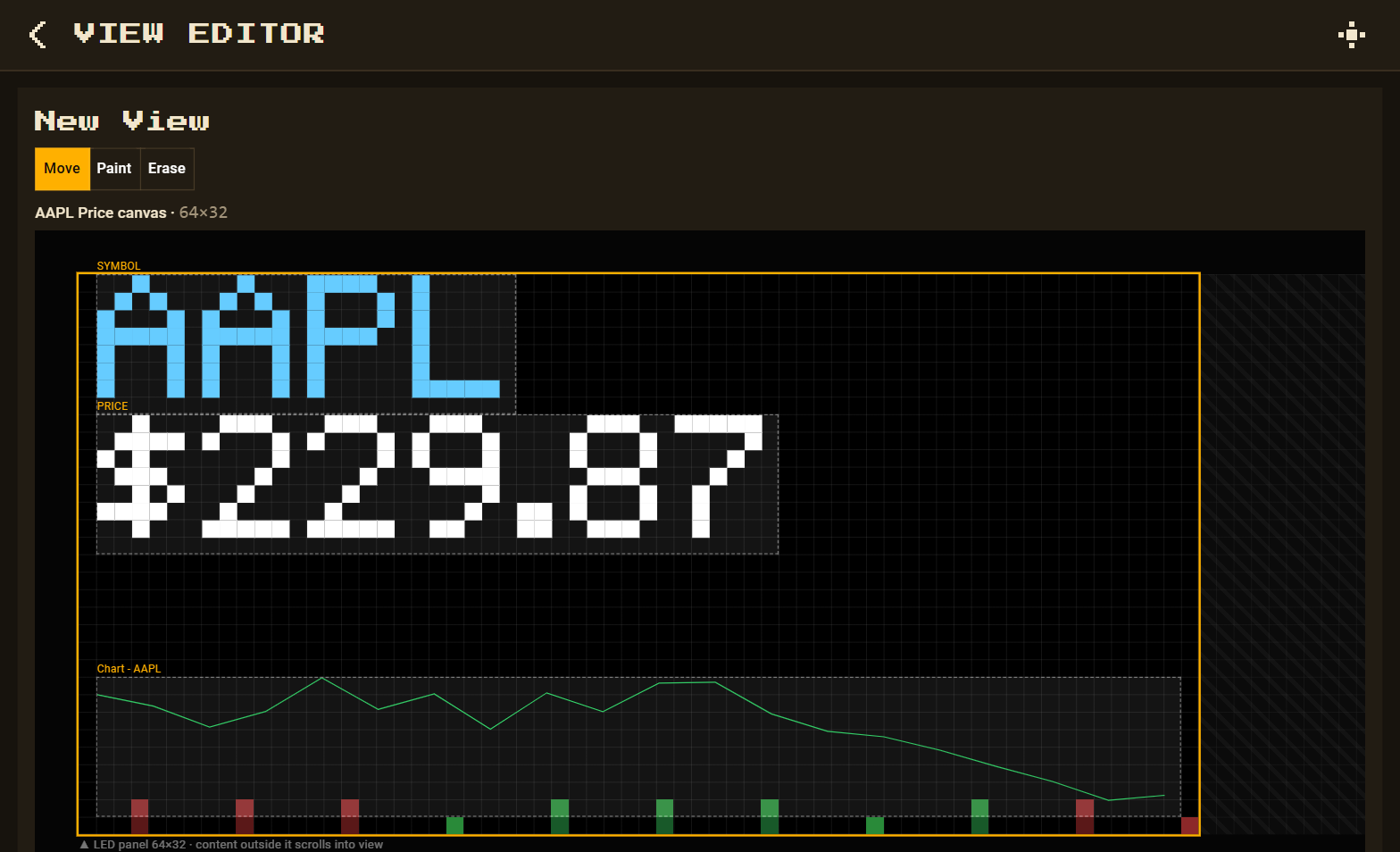
Press Add: symbol, price and chart arrive as separate values. Save.
Twelve Data's free plan allows 8 requests a minute and a stock view uses two, so set Refresh every to 120 seconds or more if you have several.