Guides → WiFi LED Pixel Art & GIF Display
WiFi LED Pixel Art & GIF Display
47 pictures, 12 animated scenes, your own GIFs and pictures, or a short message — no key, no code.
What you need
- A DataPix, powered on and joined to your WiFi (see Setup).
- For imports: a GIF or picture on your phone or computer.
Step by step
-
Pixel Art — a picture, or your own
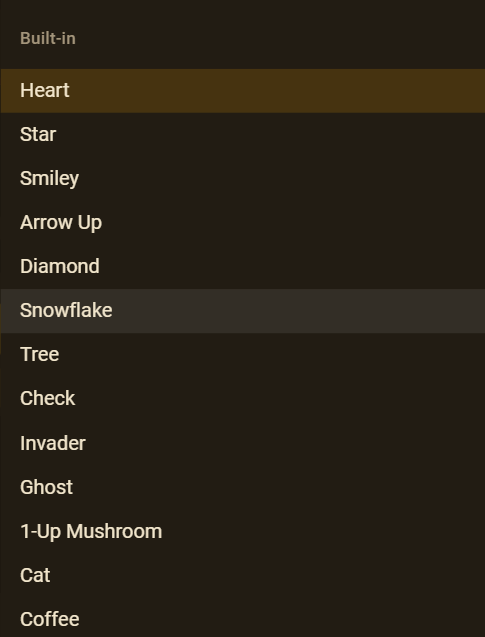
Add a View → Custom texts & animations → Pixel Art, then pick one of 47 pictures — knights, slimes, pizza, a snowman, a race car… It's added as a value you can place anywhere. Want your own? Create icon, pick a size up to 32×32 and draw it; it's saved on the device under Your icons.
-
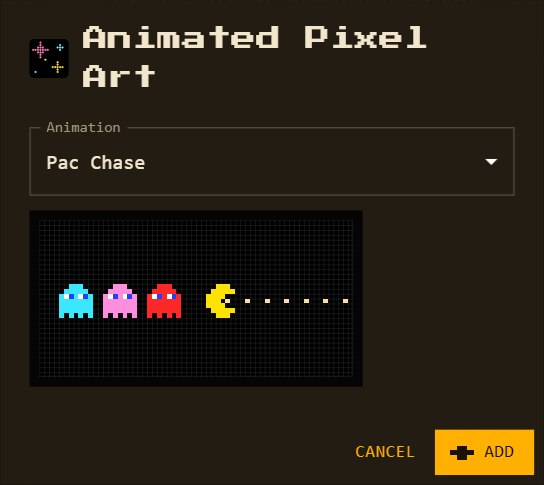
Animated Pixel Art — a scene
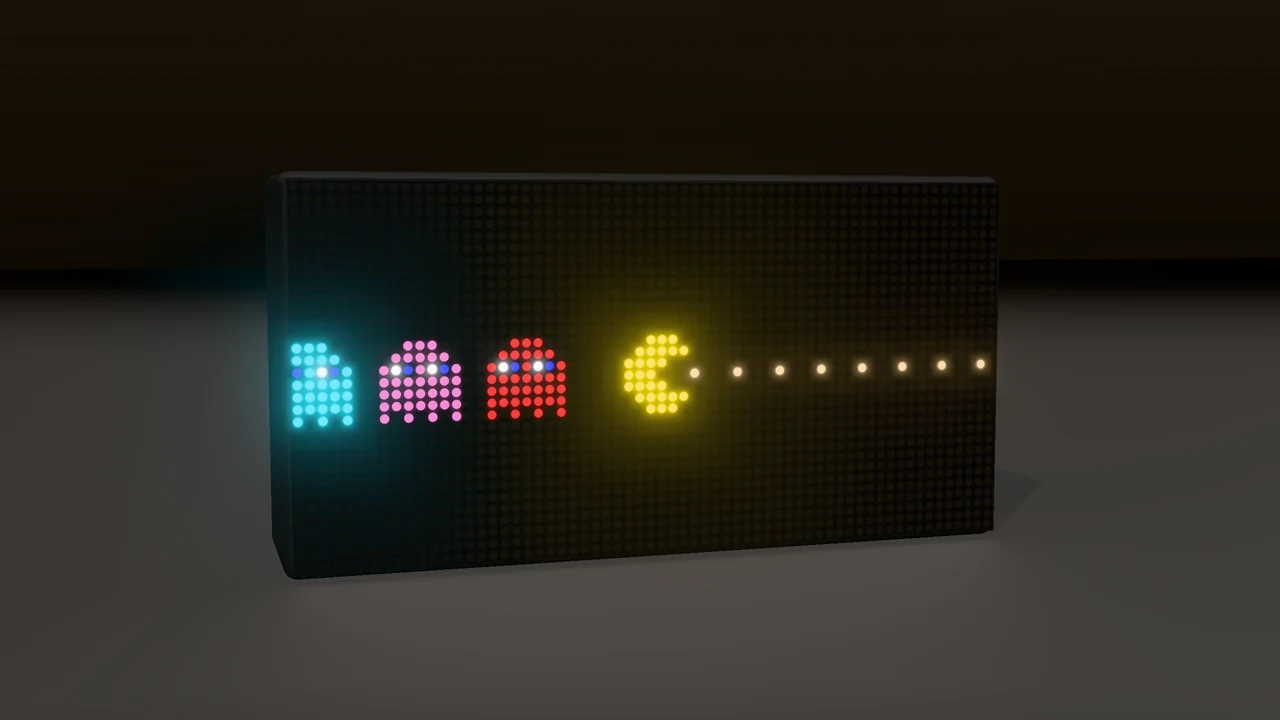
Animated Pixel Art offers 12 scenes (Pac Chase, Aquarium, Night City, Campfire, Snow Globe…), 11 backgrounds, 14 patterns and 26 full-panel effects, with a live preview. Each is saved as ordinary frames you can paint over. See them all playing →
-
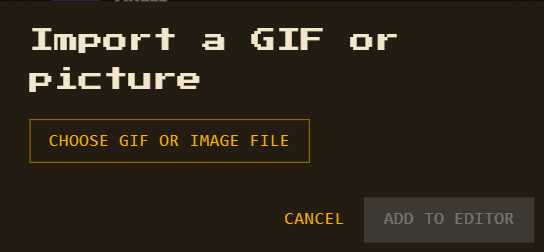
Import GIF / Picture — your own image
Choose a file. It's decoded in your browser, resized to the panel and shown as a view — nothing is uploaded anywhere else. GIFs can have up to 180 frames.
-
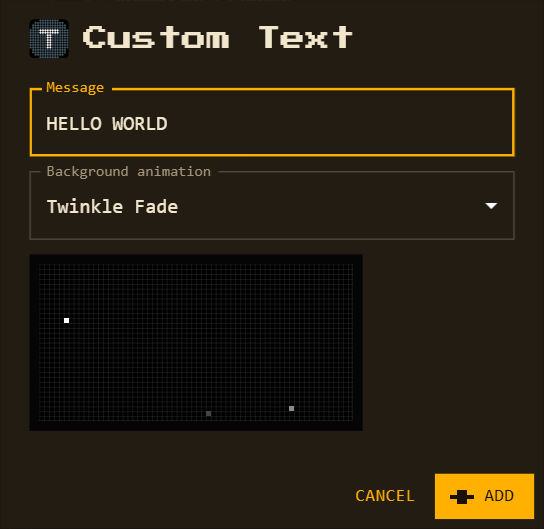
Custom Text & Quote — a short message
Custom Text is a message you type. Quote picks a short quote from a built-in list and scrolls it. Text wider than the panel scrolls sideways on its own.